Making Zoom Meetings more Accessible
Online meetings have become an essential part of how we work, learn and connect. While Zoom has made virtual collaboration easier than ever, accessibility doesn't happen automatically. A few simple adjustments can make your meetings more inclusive and ensure that everyone has an equal opportunity to participate.
Whether you're hosting a team meeting, delivering a presentation or running a webinar, these five tips will help create a more accessible experience for everyone.
1. Enable Live Captions
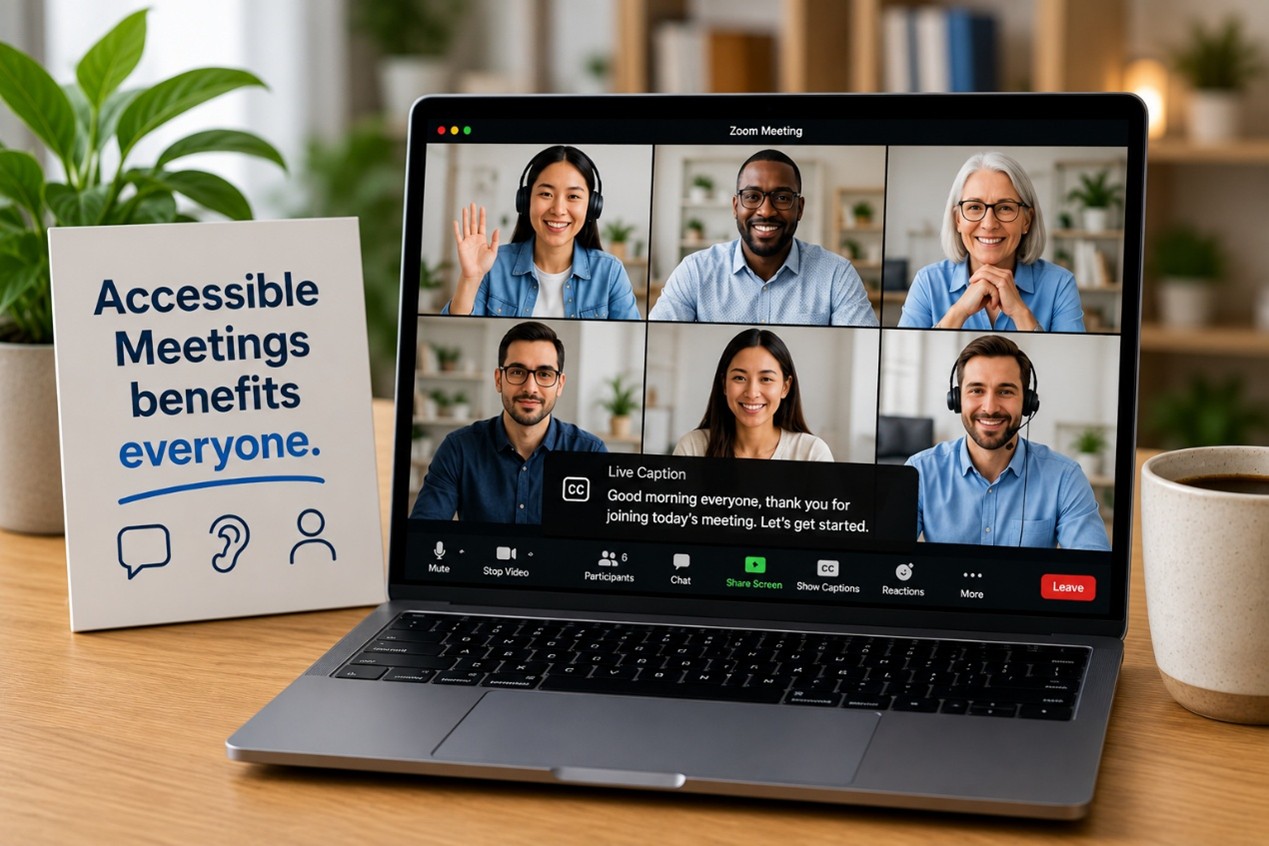
One of the easiest and most effective accessibility features in Zoom is Live Captions. Captions support people who are deaf or hard of hearing, participants whose first language is different from the speaker's, and anyone joining from a noisy environment.
To enable captions during a meeting, look for the "Show Captions" (CC) button in the meeting toolbar at the bottom of the Zoom window. If you don't see it, click the More (⋯) menu to find it. Select Show Captions and Zoom will automatically generate real-time captions for the conversation.
If you're hosting the meeting and the feature isn't available, you may need to enable Automated Captions in your Zoom account settings before the meeting. Once enabled, participants can choose whether they want to display captions.
2. Share the Agenda and Materials in Advance
Providing the meeting agenda, presentation slides or supporting documents before the meeting gives participants time to prepare. This is particularly helpful for people who use screen readers, those with cognitive disabilities or anyone who benefits from reviewing information at their own pace. Sharing materials in advance also allows attendees to think about questions and contribute more confidently during the discussion.
3. Describe Visual Content
Avoid assuming that everyone can see what is being shared on screen. When presenting slides, charts, images or videos, describe the important visual information aloud. Instead of saying, "As you can see here", explain the key points verbally.
For example, rather than saying, "The graph speaks for itself", you could say, "This graph shows a steady increase in sales over the last six months, with the highest growth occurring in May". This simple habit makes presentations more accessible for participants with visual impairments and is also helpful for anyone joining by phone or experiencing a poor internet connection.
4. Encourage Clear Communication
Good communication benefits everyone. Speak clearly, avoid talking over other participants and pause regularly to allow questions or comments. Encourage participants to use Zoom's Raise Hand feature or the Chat if they prefer not to interrupt.
Giving each person the opportunity to speak creates a more inclusive meeting, where everyone feels heard and respected. It also makes conversations easier to follow, especially when captions are being used.
5. Record the Meeting and Share Captions and Notes
Not everyone can attend a meeting live and some participants may need to revisit the discussion afterward. Recording the session and sharing the recording, captions, meeting notes or action items allows everyone to review the information at their own pace.
This is especially useful for participants who experienced technical issues, needed additional processing time or were unable to attend due to time zone differences. Providing accessible meeting records ensures that nobody misses important information.
Accessibility Benefits Everyone
Creating accessible Zoom meetings isn't only about supporting people with disabilities, but about improving the experience for every participant. Features like captions, clear communication, advance preparation and accessible meeting materials help everyone stay informed, engaged and productive.
Accessibility is not a one-time checklist, but an ongoing commitment to inclusive communication. By incorporating these simple practices into your virtual meetings, you create an environment where everyone has the opportunity to participate, contribute and succeed.
After all, the best meetings are the ones where everyone can fully take part.